Design · Accessibility
Accessibility in 2026 — A Developer's Guide to WCAG Compliance
Web accessibility is legally required and ethically essential. Here's a practical guide to building accessible applications with WCAG 2.2 compliance.

Anurag Verma
8 min read

Accessibility is not optional. In 2026, web accessibility lawsuits continue to rise, regulatory requirements are expanding, and — most importantly — 1 billion people worldwide live with disabilities. Building accessible products is both a legal requirement and the right thing to do.
This guide covers practical accessibility implementation for web developers.
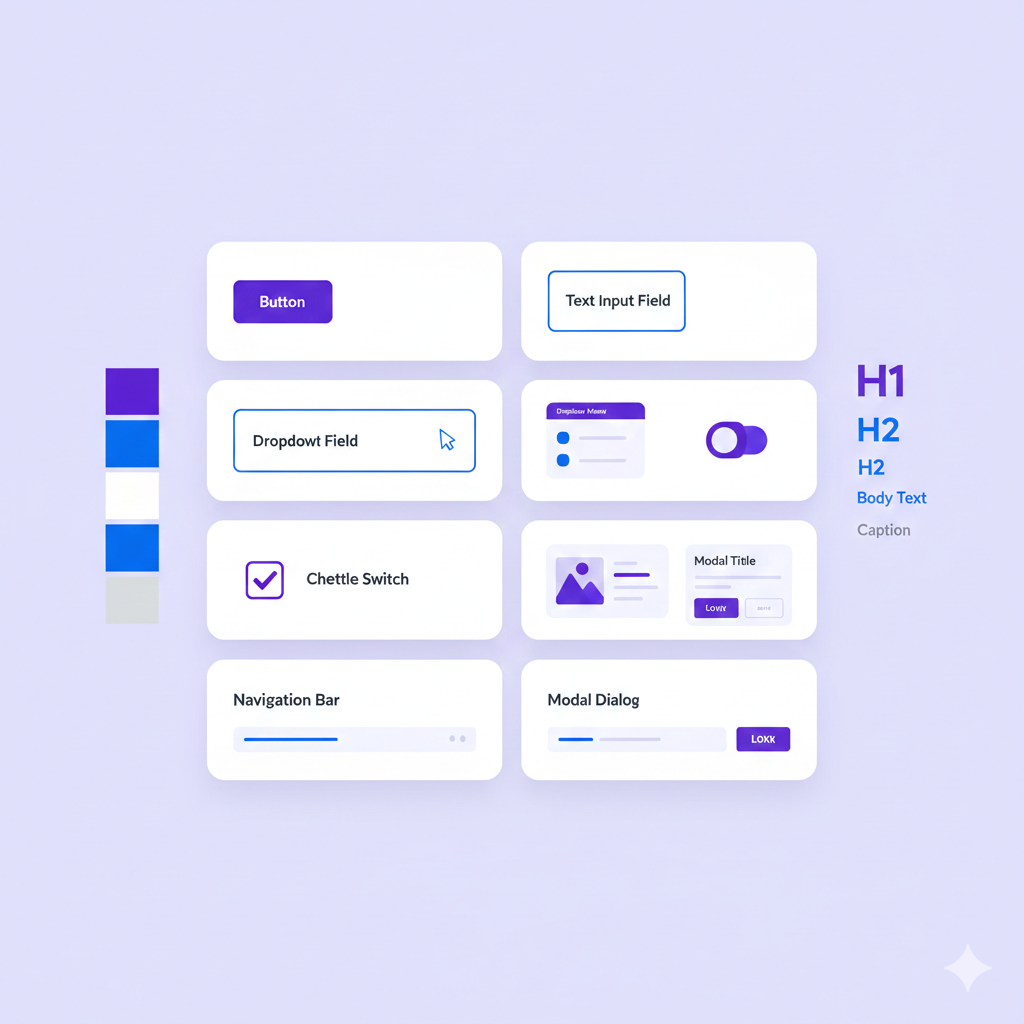
Accessible design benefits everyone, not just users with disabilities
Understanding WCAG
WCAG (Web Content Accessibility Guidelines) is the international standard for web accessibility.
WCAG 2.2 Structure
WCAG is organized around four principles (POUR):
| Principle | Meaning |
|---|---|
| Perceivable | Information must be presentable in ways users can perceive |
| Operable | Interface components must be operable by all users |
| Understandable | Information and UI operation must be understandable |
| Robust | Content must be robust enough to work with assistive technologies |
Conformance Levels
| Level | Description | Required For |
|---|---|---|
| A | Minimum accessibility | Basic compliance |
| AA | Standard accessibility | Most regulations (ADA, EU) |
| AAA | Enhanced accessibility | Specialized applications |
Target Level AA. It covers most accessibility needs and is the regulatory standard.
Practical Implementation
Semantic HTML
Use the right HTML elements. This solves 50% of accessibility issues:
<!-- Bad: div-based navigation -->
<div class="nav">
  <div class="nav-item" onclick="navigate('/home')">Home</div>
</div>

<!-- Good: semantic navigation -->
<nav aria-label="Main navigation">
  <ul>
    <li><a href="/home">Home</a></li>
  </ul>
</nav>
Key semantic elements:
| Element | Purpose |
|---|---|
<header> | Page or section header |
<nav> | Navigation links |
<main> | Main content |
<article> | Self-contained content |
<section> | Thematic grouping |
<aside> | Tangentially related content |
<footer> | Page or section footer |
<button> | Clickable actions |
<a> | Navigation links |
Keyboard Navigation
All functionality must be keyboard accessible:
// Component with keyboard support
function Dropdown({ items, onSelect }) {
  const [activeIndex, setActiveIndex] = useState(0)
  const [isOpen, setIsOpen] = useState(false)

  const handleKeyDown = (e: KeyboardEvent) => {
    switch (e.key) {
      case 'ArrowDown':
        e.preventDefault()
        setActiveIndex(prev => Math.min(prev + 1, items.length - 1))
        break
      case 'ArrowUp':
        e.preventDefault()
        setActiveIndex(prev => Math.max(prev - 1, 0))
        break
      case 'Enter':
      case ' ':
        e.preventDefault()
        onSelect(items[activeIndex])
        setIsOpen(false)
        break
      case 'Escape':
        setIsOpen(false)
        break
    }
  }

  return (
    <div role="listbox" onKeyDown={handleKeyDown}>
      {items.map((item, index) => (
        <div
          key={item.id}
          role="option"
          aria-selected={index === activeIndex}
          tabIndex={index === activeIndex ? 0 : -1}
        >
          {item.label}
        </div>
      ))}
    </div>
  )
}
Keyboard requirements:
- All interactive elements must be focusable
- Focus order must be logical
- Focus indicator must be visible
- No keyboard traps (user can always navigate away)
ARIA (When Needed)
ARIA supplements HTML when semantics are not enough:
<!-- Custom dropdown needs ARIA -->
<button
  aria-haspopup="listbox"
  aria-expanded="true"
  aria-controls="dropdown-list"
>
  Select option
</button>

<ul
  id="dropdown-list"
  role="listbox"
  aria-label="Options"
>
  <li role="option" aria-selected="true">Option 1</li>
  <li role="option" aria-selected="false">Option 2</li>
</ul>
ARIA rules:
- Do not use ARIA if native HTML works
- All interactive ARIA elements need keyboard support
- Never change native semantics unnecessarily
- All ARIA controls need accessible names
Color and Contrast
WCAG requires minimum contrast ratios:
| Content | Ratio (AA) | Ratio (AAA) |
|---|---|---|
| Normal text | 4.5:1 | 7:1 |
| Large text (18pt+) | 3:1 | 4.5:1 |
| UI components | 3:1 | — |
/* Bad: low contrast */
.text {
  color: #999999;  /* 2.85:1 on white - fails AA */
}

/* Good: sufficient contrast */
.text {
  color: #595959;  /* 7:1 on white - passes AAA */
}
Tools: Use contrast checkers in your design tools or browser DevTools.
Images and Media
Provide text alternatives:
<!-- Informative image -->
<img
  src="chart.png"
  alt="Sales increased 25% from Q1 to Q2 2026"
/>

<!-- Decorative image -->
<img
  src="decorative-border.png"
  alt=""
  role="presentation"
/>

<!-- Complex image with detailed description -->
<figure>
  <img
    src="complex-diagram.png"
    alt="System architecture overview"
    aria-describedby="diagram-description"
  />
  <figcaption id="diagram-description">
    The system consists of three layers: presentation (React),
    API (Node.js), and data (PostgreSQL). Traffic flows through
    a load balancer to multiple API instances...
  </figcaption>
</figure>
Video requirements:
- Captions for deaf/hard of hearing users
- Audio descriptions for blind users
- Transcripts for all users
Forms
Forms are common accessibility failure points:
<!-- Accessible form -->
<form>
  <div class="form-group">
    <label for="email">
      Email address
      <span aria-hidden="true">*</span>
    </label>
    <input
      id="email"
      type="email"
      required
      aria-required="true"
      aria-describedby="email-hint email-error"
    />
    <span id="email-hint" class="hint">
      We'll never share your email
    </span>
    <span id="email-error" class="error" role="alert">
      Please enter a valid email address
    </span>
  </div>

  <fieldset>
    <legend>Notification preferences</legend>
    <div>
      <input type="checkbox" id="email-notifications" />
      <label for="email-notifications">Email notifications</label>
    </div>
    <div>
      <input type="checkbox" id="sms-notifications" />
      <label for="sms-notifications">SMS notifications</label>
    </div>
  </fieldset>

  <button type="submit">Save preferences</button>
</form>
Form requirements:
- Every input has a visible label
- Labels are programmatically associated (for/id)
- Error messages are clear and announced
- Required fields are indicated
- Group related inputs with fieldset/legend
Focus Management
Manage focus for dynamic content:
// Modal focus management
function Modal({ isOpen, onClose, children }) {
  const modalRef = useRef<HTMLDivElement>(null)
  const previousFocus = useRef<HTMLElement | null>(null)

  useEffect(() => {
    if (isOpen) {
      // Store current focus
      previousFocus.current = document.activeElement as HTMLElement
      // Move focus to modal
      modalRef.current?.focus()
    } else {
      // Restore focus when closing
      previousFocus.current?.focus()
    }
  }, [isOpen])

  if (!isOpen) return null

  return (
    <div
      ref={modalRef}
      role="dialog"
      aria-modal="true"
      aria-labelledby="modal-title"
      tabIndex={-1}
    >
      <FocusTrap>
        <h2 id="modal-title">Modal Title</h2>
        {children}
        <button onClick={onClose}>Close</button>
      </FocusTrap>
    </div>
  )
}
Live Regions
Announce dynamic content to screen readers:
<!-- Polite announcement (waits for pause) -->
<div aria-live="polite" aria-atomic="true">
  Item added to cart
</div>

<!-- Assertive announcement (interrupts) -->
<div role="alert">
  Error: Payment failed. Please try again.
</div>

<!-- Status updates -->
<div role="status">
  Loading... 50% complete
</div>
Testing Accessibility
Automated Testing
Automated tools catch ~30% of issues:
# axe-core with Playwright
npm install @axe-core/playwright

# In tests
import { injectAxe, checkA11y } from 'axe-playwright'

test('homepage is accessible', async ({ page }) => {
  await page.goto('/')
  await injectAxe(page)
  await checkA11y(page)
})
Tools:
- axe-core (browser extension, CI integration)
- Lighthouse (Chrome DevTools)
- WAVE (browser extension)
- pa11y (command line)
Manual Testing
Automated testing is not enough:
Keyboard testing:
- Tab through entire page
- Verify focus is visible
- Verify all interactions work without mouse
- Check for keyboard traps
Screen reader testing:
- VoiceOver (macOS, iOS)
- NVDA (Windows, free)
- JAWS (Windows, paid)
Other checks:
- Zoom to 200% — does content reflow?
- Disable CSS — does content make sense?
- Check color contrast
- Verify heading hierarchy
Accessibility Audit Checklist
| Category | Check |
|---|---|
| Structure | Semantic HTML used |
| One h1 per page | |
| Logical heading hierarchy | |
| Landmarks present (main, nav, etc.) | |
| Keyboard | All elements focusable |
| Focus visible | |
| No keyboard traps | |
| Skip link present | |
| Images | Alt text for informative images |
| Decorative images marked | |
| Forms | Labels associated |
| Errors announced | |
| Required fields indicated | |
| Color | Contrast ratios met |
| Information not color-only | |
| Motion | Respects prefers-reduced-motion |
| No auto-playing media |
Component Patterns
Skip Link
<body>
  <a href="#main-content" class="skip-link">
    Skip to main content
  </a>
  <nav>...</nav>
  <main id="main-content" tabindex="-1">
    ...
  </main>
</body>

<style>
.skip-link {
  position: absolute;
  left: -9999px;
}
.skip-link:focus {
  left: 0;
  z-index: 9999;
  background: white;
  padding: 1rem;
}
</style>
Accessible Tabs
function Tabs({ tabs }) {
  const [activeTab, setActiveTab] = useState(0)

  return (
    <div>
      <div role="tablist" aria-label="Content tabs">
        {tabs.map((tab, index) => (
          <button
            key={tab.id}
            role="tab"
            id={`tab-${tab.id}`}
            aria-selected={index === activeTab}
            aria-controls={`panel-${tab.id}`}
            tabIndex={index === activeTab ? 0 : -1}
            onClick={() => setActiveTab(index)}
          >
            {tab.label}
          </button>
        ))}
      </div>
      {tabs.map((tab, index) => (
        <div
          key={tab.id}
          role="tabpanel"
          id={`panel-${tab.id}`}
          aria-labelledby={`tab-${tab.id}`}
          hidden={index !== activeTab}
        >
          {tab.content}
        </div>
      ))}
    </div>
  )
}
Making It Sustainable
Build Accessibility Into Process
- Design phase: Accessibility review of mockups
- Development: Use accessible components, write semantic HTML
- Code review: Check for accessibility issues
- Testing: Automated + manual accessibility tests
- QA: Include accessibility in test plans
Use Accessible Component Libraries
Start with components that handle accessibility:
- Radix UI
- Headless UI
- React Aria
- Chakra UI
These provide keyboard support, ARIA, and focus management out of the box.
Educate Your Team
Accessibility is everyone’s responsibility:
- Designers: Color contrast, focus states, touch targets
- Developers: Semantic HTML, keyboard support, ARIA
- QA: Testing with assistive technologies
- Content: Clear writing, alt text, captions
The Bottom Line
Accessibility is not a feature — it is a quality standard. Just as you would not ship code that crashes for some users, you should not ship code that is unusable for users with disabilities.
Start with semantic HTML. Test with a keyboard. Run automated scans. Gradually expand your skills. Perfect accessibility is a journey, but every step makes your product usable by more people.
More from this category
More from Design


The dispatch
Working notes from
the studio.
A short letter twice a month — what we shipped, what broke, and the AI tools earning their keep.
Discussion
Join the conversation.
Comments are powered by GitHub Discussions. Sign in with your GitHub account to leave a comment.